Triggering Skill Checks: Solving Sessions and Timers (Unreal Engine)
How a radial skill check decides when to appear: a solving session that runs between Begin and End, an auto-trigger timer with randomized intervals, manual Show Gauge calls with optional per-check settings, and random on-screen placement.
This is the final step of the Radial Skill Check in Unreal Engine guide. The gauge moves, the zones are placed, the stop is scored. All that is left is deciding when a check shows up.
The solving session
Nothing happens until you open a solving session. It is a simple boolean window: open it when an activity begins, close it when the activity ends.
void USkillCheckComponent::BeginSolving()
{
    if (bIsSolving) return;          // ignore duplicate opens
    bIsSolving = true;
    if (bAutoTriggerSkillChecks) ScheduleNextSkillCheck();
}
EndSolving is the mirror image: it clears the timers, stops the gauge, removes the widget,
and resets the angle. The component also calls EndSolving from EndPlay, so a destroyed
actor never leaves a dangling timer or an orphaned widget on screen.
On activity start   ->  BeginSolving
On activity finish  ->  EndSolving
Automatic checks on a jittered timer
With auto-trigger on (the default), opening a session starts a self-rescheduling timer. Each interval is randomized so the checks do not feel metronomic:
const float Variance     = FMath::RandRange(-SkillCheckIntervalVariance, SkillCheckIntervalVariance);
const float NextInterval = FMath::Max(0.5f, SkillCheckInterval + Variance);
// timer -> OnAutoSkillCheckTimer, which calls ShowGauge() if still solving and idle
When the timer fires it shows a gauge only if a session is still open and no gauge is already up. After each attempt (a stop or a timeout), the next check is scheduled again, so checks keep coming for as long as the session lasts.
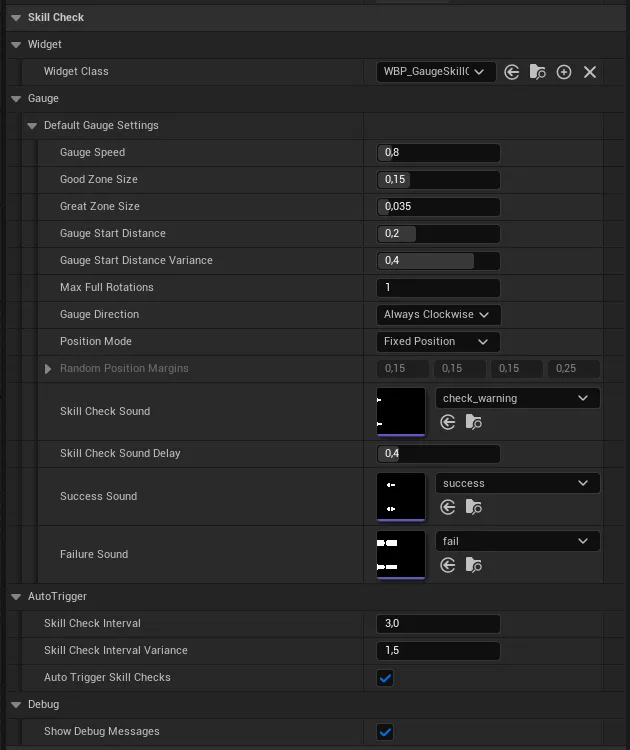
Manual checks, one per action
Turn auto-trigger off and you drive checks yourself, one per hammer swing or lockpick
wiggle, by calling ShowGauge. Every check, automatic or manual, first copies your
DefaultGaugeSettings into a working NextGaugeSettings:
NextGaugeSettings = DefaultGaugeSettings; // per-check, overridable copyThat copy is the hook for variety. Tweak NextGaugeSettings between checks, or call
ShowGaugeWithSettings with a full struct to override speed, zone sizes, direction, or
position for a single check. Sounds you leave unset in that struct are inherited from the
defaults, so a one-off fast, tiny-zone check still plays your normal audio.
A pre-check warning and random placement
Two settings shape the moment a check appears:
- A pre-check sound with an optional delay plays a beat before the gauge, so the player gets an audio cue and time to look. The widget is created after the delay.
- Random position mode places the gauge at a random screen spot each check, inside configurable edge margins, by setting the container’s canvas anchors. Now the player has to find the gauge as well as time it; leave it on fixed position to keep it centered.
Letting the player react
The session decides when a gauge appears; the player ends it by pressing the key bound to
AttemptSkillCheck, which stops and scores the
sweep. If they never react, the gauge times out into a miss on its own.
That completes the loop: a session opens, checks appear on a timer or on demand, each one randomizes its zones and sweeps, and the player’s stop scores into one of three events. For the full picture from the top, return to the guide hub, or drop the finished system in with the Radial Skill Check plugin.
Frequently asked questions
- What is a solving session?
- The period between BeginSolving and EndSolving during which checks are allowed. You open it when an activity starts (a repair begins) and close it when the activity ends. It also guards the auto-trigger timer, which only fires while a session is open.
- How do automatic checks get their timing?
- After each check, ScheduleNextSkillCheck sets a timer for SkillCheckInterval plus a random value between minus and plus SkillCheckIntervalVariance, clamped to at least 0.5 seconds, so checks feel irregular rather than metronomic.
- Can a single check use different settings?
- Yes. Each check copies DefaultGaugeSettings into NextGaugeSettings first, so you can tweak NextGaugeSettings between checks, or call ShowGaugeWithSettings with a full struct to override speed, zone sizes, direction, and position for one check while inheriting any unset sounds from the defaults.