Radial Skill Check Architecture in Unreal Engine: How It Works
The architecture behind a radial skill check in Unreal Engine: one normalized 0-1 angle, a C++ component that owns the logic, a widget that only rotates a needle, and materials that draw the arcs. Why the visuals are split off from the gameplay.
This is the first step of the Radial Skill Check in Unreal Engine guide. Before any code, it is worth being clear about how the pieces are arranged, because the whole thing is easier to follow once you see that the gameplay and the visuals are kept completely apart.
One number does the work
The mechanic is built around a single value: the gauge angle, normalized to 0-1 around the dial, where 0 is the top and 1 is a full turn back to the top. Everything is expressed on that same line:
- the gauge’s current position is a 0-1 angle;
- the good zone is a start angle plus a size, both 0-1;
- the great zone is another start angle plus a (smaller) size, nested inside the good zone.
Keeping it unitless makes it resolution-independent and lets the same number mean three
things at once: a fraction of a turn for the needle, an arc length for the material, and a
target range for scoring. The degrees only appear at the very end, when the widget rotates
the needle by angle * 360.
Three layers that never reach across
The system is three layers, and the discipline is that each one only talks to its neighbour:
- The component (
USkillCheckComponent, a C++ActorComponent) owns all the logic. It advances the angle every tick, randomizes the zones, scores the stop, fires events, and plays sounds. It never touches a pixel. - The widget (
WBP_GaugeSkillCheck, on theUUI_RadialCheckWidgetC++ base) owns presentation. It does almost nothing: it rotates one image and forwards the component’s numbers into materials. - The materials (
M_DynamicRadialSlice,M_StaticBackgroundCircle) own rendering. They draw a ring and cut an arc out of it, driven entirely by parameters.
Because the seam between gameplay and visuals is just “a handful of normalized numbers,” you can rebuild the look completely, swap the materials, change the art, restyle the dial, without touching the logic, and vice versa.
The widget is mostly empty
Open WBP_GaugeSkillCheck and the hierarchy tells the whole story. Four images stacked in
an overlay inside a SizeBox:
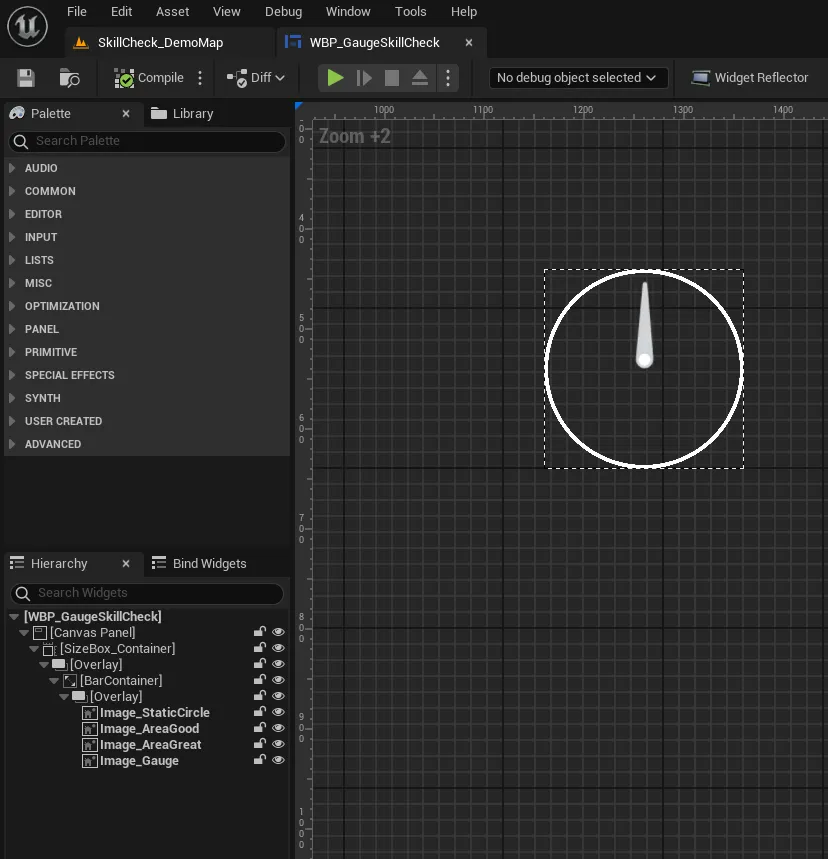
- Image_StaticCircle: the background ring, drawn by
M_StaticBackgroundCircle. - Image_AreaGood: the good zone arc, a dynamic instance of
M_DynamicRadialSlice. - Image_AreaGreat: the great zone arc, a second instance of the same material.
- Image_Gauge: the needle. This is the only thing that actually moves, and the C++ base class rotates it for you.
Notice what is missing: there is no logic in the widget for where the zones are or how big they are. Those arrive as numbers from the component and get pushed straight into the two arc materials. The needle spins; the arcs just recolor and resize.
What the base class hands you
The UUI_RadialCheckWidget C++ base does three jobs and then steps aside:
- it rotates
Image_Gaugefrom the current angle (SetCheckAngle->angle * 360degrees, around a configurable pivot); - it exposes setters for the four zone values: good size, great size, good start angle, great start angle;
- it calls a Blueprint event,
OnZoneValuesUpdated, whenever those values change, so your graph can write them into the materials.
Everything past that point, the dynamic material instances, the colors, the arcs, lives in the Widget Blueprint, which is exactly why the look is yours to change.
The rest of the guide
With the shape in mind, the remaining steps build each layer:
- the rotating gauge: the tick math that advances the angle and spins the needle;
- randomizing the zones: placing the good and great targets each check;
- the arc material: how a ring becomes a colored slice;
- wiring the widget: pushing the numbers into the materials;
- scoring and events and triggering: turning a stop into an outcome and deciding when checks appear.
If you would rather drop the finished system in, the Radial Skill Check plugin packages all of it.
Frequently asked questions
- Why is everything normalized to 0-1 instead of degrees?
- A 0-1 range around the dial is resolution-independent and unitless, so the same number means a zone size, an arc length in a material, and a fraction of a full turn. The widget converts it to degrees only at the last moment (angle times 360) when it rotates the needle.
- What are the four images in the gauge widget?
- Image_StaticCircle is the background ring, Image_AreaGood and Image_AreaGreat are the two zone arcs (each drawn by a dynamic instance of the radial-slice material), and Image_Gauge is the needle that the C++ base class rotates. Only the needle moves; the arcs only change their material parameters.
- What does the C++ base class actually expose?
- UI_RadialCheckWidget exposes setters for the check angle and the four zone values (good size, great size, good start, great start), plus an OnZoneValuesUpdated event you implement in Blueprint to push those values into your materials. It rotates Image_Gauge itself; everything else is yours.