Building Slate UI and Project Settings for an Unreal Plugin
How a plugin panel is composed in Slate (SCompoundWidget, SNew vs SAssignNew, splitters, reactive _Lambda attributes) and how its options are exposed in Project Settings with a config UObject registered through ISettingsModule, with live updates via PostEditChangeProperty.
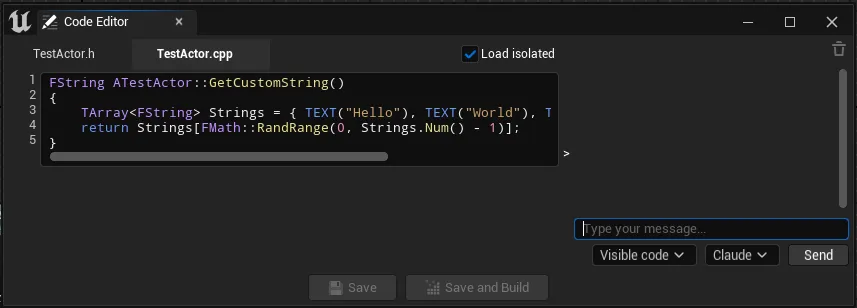
A plugin panel is two problems: the widget tree you see, and the options that configure it. Unreal answers both with declarative systems that are quick once you know the idioms and opaque until you do. This article covers both, using the AI Node Code Editor (Quick Code Editor on FAB) as the example. It is one of six self-contained articles in Building an AI Code Editor Inside Unreal Engine.
Slate composition, the short version
Slate is a declarative C++ UI framework. You describe a tree with nested SNew calls and
slot operators, and the framework lays it out. The panel below is a vertical box whose top
row is a horizontal splitter dividing the code editor from the AI chat:
TSharedRef<SDockTab> NewTab = SNew(SDockTab)
    .TabRole(ETabRole::NomadTab)
    [
        SNew(SVerticalBox)
        + SVerticalBox::Slot().FillHeight(1.0f).Padding(4)
        [
            SNew(SSplitter).Orientation(Orient_Horizontal)
            + SSplitter::Slot().Value(1.0f)
            [
                /* code editor column */
            ]
        ]
    ];
A few idioms carry most of the weight:
SNewvsSAssignNew.SNew(SButton)builds a button you never touch again.SAssignNew(MyButton, SButton)builds the same button and stores it inMyButtonso you can call into it later. Only reach forSAssignNewon widgets you actually talk to after construction; everything else isSNew.- Slots size content.
.AutoWidth()/.AutoHeight()size to the child;.FillWidth(x)/.FillHeight(x)take a proportional share of the remaining space. SSplittergives the user a draggable divider between panes;SWidgetSwitchershows one child at a time by index, which is how the declaration (.h) and implementation (.cpp) tabs share one region.
Reactive styling with _Lambda attributes
The most useful trick for a tool UI is the _Lambda attribute. Instead of setting a color
once, you bind a function that Slate re-evaluates every frame, so the UI reflects state
with no manual invalidation:
SNew(SBorder)
    .BorderBackgroundColor_Lambda([this]()
    {
        return bIsDeclarationTabActive
            ? GetDefault<UQCE_EditorSettings>()->ActiveTabBackgroundColor
            : GetDefault<UQCE_EditorSettings>()->InactiveTabBackgroundColor;
    })
The active-tab highlight, the little “modified” dot on an edited file, and the collapse of the AI pane are all just lambdas reading a bool or a setting. There is no “update the color” call anywhere, because the binding is the update.
Two ways to extend a Slate widget
There are two distinct ways to build a custom widget, and a good codebase uses both:
- Subclass a concrete widget to change its behavior. The code box derives from
SMultiLineEditableTextBox, re-exposes the base’s fullSLATE_BEGIN_ARGS, forwards them to the baseConstruct, and then adds its own key handling, syntax layout and completion on top. - Compose with
SCompoundWidgetto assemble a widget out of others. A wrapper around the code box adds a line-number gutter and a shared scroll box, assigning the assembled tree to its singleChildSlot.
The pattern that ties it together is keeping state in a UObject and the view in Slate.
A UMainEditorContainer (a plain UObject, not a widget) owns the lifetime, the delegate
bindings and handles to the named widgets, while the widget tree itself is anonymous Slate
built in one method. The UObject is GC-managed and survives; the Slate is rebuilt cheaply.
The bridge between them is the set of SAssignNew handles.
Exposing options in Project Settings
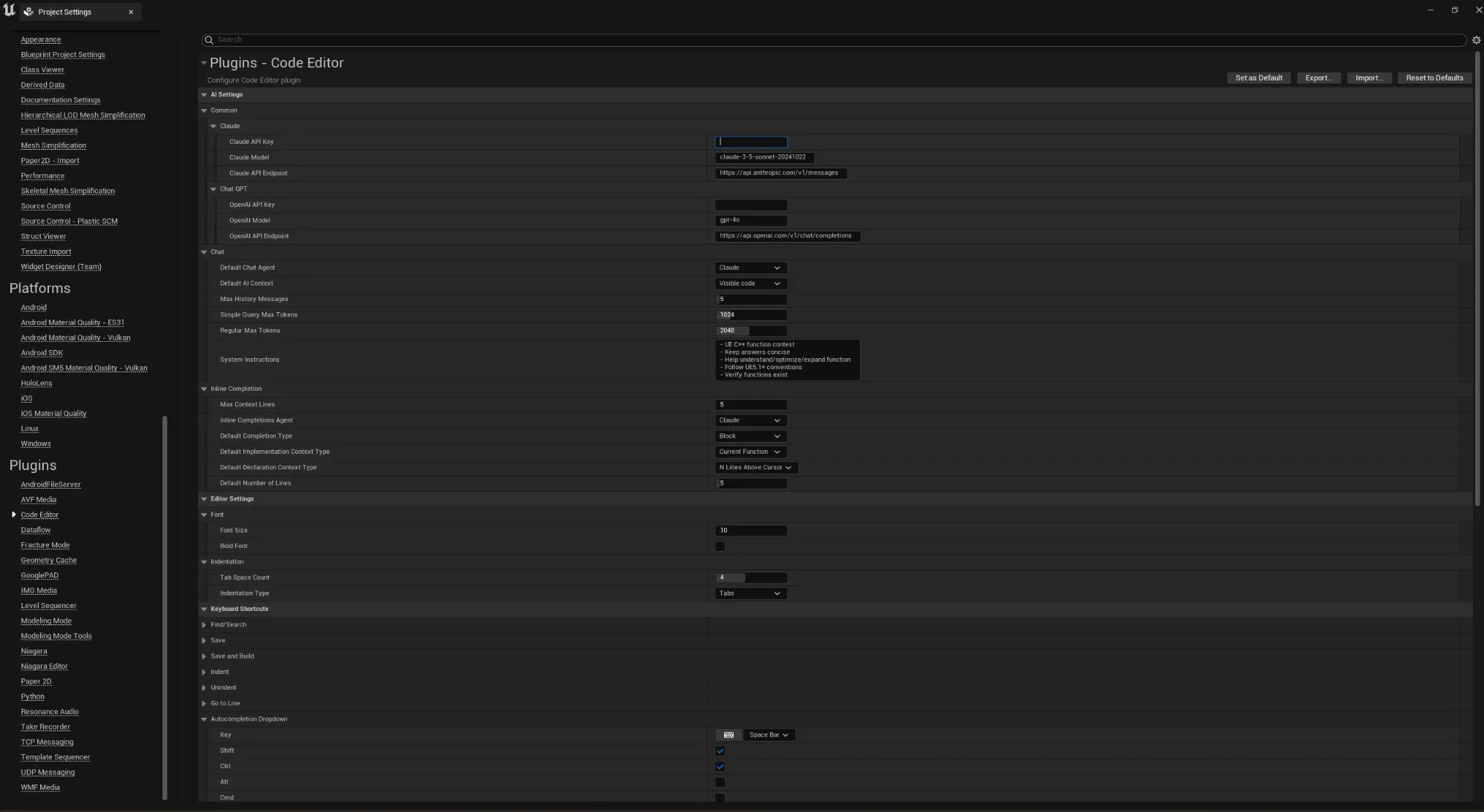
Now the configuration. A settings page is, at heart, a UObject whose properties Unreal
renders into a details panel. The class is marked config so values persist to an ini:
UCLASS(config = EditorPerProjectUserSettings)
class UQCE_EditorSettings : public UObject
{
    GENERATED_BODY()
public:
    UPROPERTY(Config, EditAnywhere, Category = "AI Settings|Common|Claude",
        meta = (DisplayName = "Claude API Key"))
    FString ClaudeApiKey;

    UPROPERTY(Config, EditAnywhere, Category = "AI Settings|Common|Claude",
        meta = (DisplayName = "Claude Model"))
    FString ModelVersion = TEXT("claude-sonnet-4-5-20250929");

    UPROPERTY(Config, EditAnywhere, Category = "AI Settings|Chat",
        meta = (ClampMin = 1, ClampMax = 50,
                ToolTip = "How many recent messages to send as context."))
    int32 MaxHistoryMessages = 5;

    UPROPERTY(Config, EditAnywhere, Category = "Editor Settings|Font",
        meta = (ClampMin = 8, ClampMax = 72))
    int32 FontSize = 10;
};
Three specifiers do all the work:
Configties the property to an ini file, so edits persist between sessions.EditAnywheremakes it appear in the details panel.Category = "A|B|C"builds the nested heading tree. The pipe is a separator, so"AI Settings|Common|Claude"nests three levels deep. This is how the whole page organizes itself into AI Settings, Editor Settings, Keyboard Shortcuts and Editor Colors with no layout code.
meta then shapes each control: DisplayName relabels it, ClampMin/ClampMax bound a
number, MultiLine = true turns an FString into a text area (used for the system
instructions), and ToolTip adds hover help.
Registering the page
A UDeveloperSettings subclass auto-registers, which is the shortest path. This plugin
instead uses a plain config UObject and registers it by hand, which buys explicit control
of the category path and a custom reset handler:
void FQuickCodeEditorModule::RegisterQceSettings()
{
    if (ISettingsModule* Settings = FModuleManager::GetModulePtr<ISettingsModule>("Settings"))
    {
        TSharedPtr<ISettingsSection> Section = Settings->RegisterSettings(
            "Project", "Plugins", "Code Editor",
            LOCTEXT("Name", "Code Editor"),
            LOCTEXT("Desc", "Configure the Code Editor plugin"),
            GetMutableDefault<UQCE_EditorSettings>());

        Section->OnResetDefaults().BindUObject(
            GetMutableDefault<UQCE_EditorSettings>(), &UQCE_EditorSettings::ResetToDefaults);
    }
}
The "Project" / "Plugins" / "Code Editor" triple is the page’s location: Project
Settings, Plugins section, Code Editor entry. The object being edited is the class default
object, GetMutableDefault<UQCE_EditorSettings>(). Remember the matching
UnregisterSettings(...) in ShutdownModule.
Reading and reacting to settings
Code reads settings on demand through the CDO, never caching, so a change is visible on the next read:
const UQCE_EditorSettings* Settings = GetDefault<UQCE_EditorSettings>();
const FString Key = Settings->ClaudeApiKey;
For changes that need to do something immediately (recolor the editor, rebind a
shortcut), override PostEditChangeProperty and broadcast a delegate:
void UQCE_EditorSettings::PostEditChangeProperty(FPropertyChangedEvent& Event)
{
    Super::PostEditChangeProperty(Event);
    const FName Name = Event.GetPropertyName();

    if (Name == GET_MEMBER_NAME_CHECKED(UQCE_EditorSettings, ColorPreset) && ColorPreset != EQCEColorPreset::Custom)
        ApplyColorPreset(ColorPreset);

    OnSyntaxSettingsUpdated.ExecuteIfBound();   // marshaller listens, recolors live
}
Whatever bound to OnSyntaxSettingsUpdated (the syntax highlighter, for example) refreshes
the moment you change a color in Project Settings. That observer channel is what makes the
settings feel live instead of requiring an editor restart.
What to take away
- Slate is declarative: build with
SNew, keep a handle withSAssignNew, divide space withSSplitter/SWidgetSwitcher, and make style reactive with_Lambdaattributes. - Extend Slate two ways: subclass a concrete widget to add behavior, or compose
with
SCompoundWidget. Keep durable state in a UObject and the tree in Slate. - A Project Settings page is a
UCLASS(config=...)UObject;UPROPERTY(Config, EditAnywhere, Category="A|B|C")fields become a nested page. Register withISettingsModule(or derive fromUDeveloperSettingsfor auto-registration). - Read settings via
GetDefault<T>()and broadcast fromPostEditChangePropertyfor live updates.
This panel is the surface every other technique plugs into: the AI assistant, code completion, syntax highlighting, and the C++ parsing behind Generate Definition. The whole tour is Building an AI Code Editor Inside Unreal Engine, and the finished plugin is AI Node Code Editor on FAB.
Frequently asked questions
- What is the difference between SNew and SAssignNew?
- SNew(WidgetType) builds a widget you do not need to reference again. SAssignNew(Member, WidgetType) builds the same widget but also stores it in a member pointer, so you can call methods on it later (set its text, switch its active index). Use SAssignNew only for widgets you talk to after construction.
- Do I need UDeveloperSettings for a Project Settings page?
- No. UDeveloperSettings auto-registers and is the most concise option, but a plain UCLASS(config=...) UObject registered manually with ISettingsModule::RegisterSettings works too and gives you full control of the category path and a custom Reset to Defaults handler.
- How do nested categories appear in Project Settings?
- The Category metadata string uses a pipe separator: Category="AI Settings|Common|Claude" produces three nested collapsible headings. Each pipe segment is one level of the tree, so related options group themselves without any extra UI code.
- How do settings changes take effect immediately in an open editor?
- Override PostEditChangeProperty on the settings object and broadcast a delegate when a relevant property changes. Widgets that bound to that delegate then refresh. Reading settings through GetDefault<T>() rather than caching also means new values are picked up on the next read.