Adding Toolbar Buttons, Tabs and Menus to the Unreal Editor
How an editor plugin hooks into Unreal: declaring keyboard commands with TCommands and UI_COMMAND, docking a panel into the Blueprint editor with a workflow tab factory and FLayoutExtender, adding a toolbar button via FExtender, and building a right-click menu with FMenuBuilder.
Most of what makes a tool feel native in Unreal is not the panel itself, it is the way it plugs into the editor: a button on the toolbar, a tab that docks where you expect, a keyboard shortcut, a right-click menu. None of that is automatic. This article is a self-contained tour of the editor-extension surface, using a real plugin (the AI Node Code Editor, shipped on FAB as Quick Code Editor) as the worked example. It is one of six articles in Building an AI Code Editor Inside Unreal Engine, each covering one technique you can lift on its own.
The module is the entry point
Everything starts in the module’s StartupModule. An editor extension is an
editor-only module, which the .uplugin declares explicitly:
"Modules": [{
    "Name": "QuickCodeEditor",
    "Type": "Editor",
    "LoadingPhase": "PostEngineInit",
    "PlatformAllowList": ["Win64"]
}]
Type: "Editor" keeps the module out of cooked, shipping builds. The non-obvious part is
LoadingPhase: "PostEngineInit": the Blueprint editor module (Kismet) and the settings
system must already exist when your StartupModule runs, and PostEngineInit is the phase
that guarantees it. Get the phase wrong and a LoadModuleChecked("Kismet") call will
assert on launch.
From there StartupModule is just a registration list:
void FQuickCodeEditorModule::StartupModule()
{
    RegisterQceToggleButton();   // toolbar button + its command
    RegisterQceSettings();       // Project Settings page
    RegisterQceTabSpawner();     // the docked tab
    FQCECommands::Register();    // right-click menu commands
    // ...
}
ShutdownModule mirrors it: unregister settings, unregister commands, tear down the tab.
Anything you add to the editor you are responsible for removing, or you leak it across
plugin reloads.
Keyboard commands: the TCommands pattern
A command in Unreal is an FUICommandInfo: a label, a tooltip, an action type, and a
default chord. You declare a set of them by subclassing the TCommands template, which
is the canonical pattern every engine tool uses.
class FCodeEditorCommands : public TCommands<FCodeEditorCommands>
{
public:
    FCodeEditorCommands()
        : TCommands<FCodeEditorCommands>(
            TEXT("CodeEditor"),                                   // context name
            NSLOCTEXT("Contexts", "CodeEditor", "Code Editor"),   // context label
            NAME_None,                                            // parent context
            FAppStyle::GetAppStyleSetName())                      // icon style set
    {}

    virtual void RegisterCommands() override;
    TSharedPtr<FUICommandInfo> CodeEditor_Open;
};
The commands themselves are created in RegisterCommands with the UI_COMMAND macro,
which wires up the localized text and the default keyboard chord in one line:
void FCodeEditorCommands::RegisterCommands()
{
    UI_COMMAND(CodeEditor_Open, "Toggle Code Editor",
        "Show or hide the quick code editor.",
        EUserInterfaceActionType::Button,
        FInputChord(EModifierKey::Alt, EKeys::C));   // default Alt+C
}
One wrinkle worth knowing: UI_COMMAND can trip up compiler optimization in some toolchains,
so it is common to wrap RegisterCommands in UE_DISABLE_OPTIMIZATION /
UE_ENABLE_OPTIMIZATION. If you see odd build errors only in shipping configs, that is the
first thing to check.
A command does nothing until it is bound to an action through an FUICommandList:
CommandList = MakeShareable(new FUICommandList);
CommandList->MapAction(
    FCodeEditorCommands::Get().CodeEditor_Open,
    FExecuteAction::CreateRaw(this, &FQuickCodeEditorModule::TryInvokeQceTab),
    FCanExecuteAction());
Rebindable shortcuts are a different mechanism
The UI_COMMAND chord is baked in at registration time. If you want shortcuts the user
can change at runtime and have them persist, the command list is the wrong tool.
The pattern instead is to store an FInputChord on a config settings object and compare
it by hand inside your widget’s OnKeyDown:
FReply SCodeBox::OnKeyDown(const FGeometry& Geometry, const FKeyEvent& Event)
{
    const UQCE_EditorSettings* Settings = GetDefault<UQCE_EditorSettings>();
    const FInputChord Chord(Event.GetKey(), EModifierKey::FromBools(
        Event.IsControlDown(), Event.IsAltDown(), Event.IsShiftDown(), Event.IsCommandDown()));

    if (Settings->SaveKeybinding == Chord) { OnSaveRequested.ExecuteIfBound(); return FReply::Handled(); }
    if (Settings->FindKeybinding == Chord) { OnSearchRequested.ExecuteIfBound(); return FReply::Handled(); }
    // Indent, Unindent, Go to Line, completion ...
    return FReply::Unhandled();
}
That is exactly why the plugin’s settings page exposes editable shortcuts for Find,
Save, Save and Build, Indent, Go to Line and so on: each one is a stored chord, not a
fixed UI_COMMAND. The two systems coexist happily, the toolbar toggle uses the classic
command, the in-editor actions use stored chords.
A docked tab inside the Blueprint editor
The interesting decision here is where the panel lives. A floating, global window is a
nomad tab registered with FGlobalTabmanager::RegisterNomadTabSpawner. But a panel
that belongs next to a specific Blueprint graph should be a per-editor workflow tab
instead, and that is registered through the Blueprint editor module’s delegates, not the
global tab manager.
FBlueprintEditorModule& BPModule =
    FModuleManager::LoadModuleChecked<FBlueprintEditorModule>("Kismet");

BPModule.OnRegisterTabsForEditor().AddRaw(this, &FQuickCodeEditorModule::AddTabFactory);
BPModule.OnRegisterLayoutExtensions().AddRaw(this, &FQuickCodeEditorModule::DockTabToBottom);
OnRegisterTabsForEditor lets you add a tab factory to each Blueprint editor as it
opens. The factory is a FWorkflowTabFactory subclass that describes the tab and builds
its contents:
FQCESummoner::FQCESummoner(TSharedPtr<FAssetEditorToolkit> HostingApp)
    : FWorkflowTabFactory(QuickCodeEditorID, HostingApp)
{
    TabLabel = LOCTEXT("TabTitle", "Code Editor");
    TabIcon  = FSlateIcon(FAppStyle::GetAppStyleSetName(), "LevelEditor.Tabs.Details");
    bIsSingleton = true;
    ViewMenuDescription = LOCTEXT("MenuTitle", "Code Editor");   // appears in Window menu
    ViewMenuTooltip     = LOCTEXT("MenuTip", "Shows the Code Editor");
}
OnRegisterLayoutExtensions is how you place the tab in the default layout without
fighting the host editor. You extend relative to a tab that already exists:
void FQuickCodeEditorModule::DockTabToBottom(FLayoutExtender& Extender)
{
    Extender.ExtendLayout(
        FBlueprintEditorTabs::BookmarksID,        // an existing built-in tab
        ELayoutExtensionPosition::After,
        FTabManager::FTab(QuickCodeEditorID, ETabState::ClosedTab));
}
That single call is the difference between a tab that snaps into a sensible dock and one that floats in the middle of the screen the first time it opens.
Toggling the tab
The toolbar button is bound to a toggle that finds the active Blueprint editor, grabs that editor’s tab manager, and either closes the tab if it is open or invokes it if it is not:
TSharedPtr<FTabManager> TabManager = BPEditor->GetTabManager();
if (TSharedPtr<SDockTab> Existing = TabManager->FindExistingLiveTab(QuickCodeEditorID))
    Existing->RequestCloseTab();          // it was open: real toggle
else
    TabManager->TryInvokeTab(QuickCodeEditorID);
One awkward detail: Unreal has no direct “give me the active asset editor” API.
You find it by walking UAssetEditorSubsystem::GetAllEditedAssets(), filtering to
Blueprints, and picking the editor with the most recent GetLastActivationTime(). It is
not pretty, but it is the reliable way.
A toolbar button with FExtender
The button uses the classic extender API rather than the newer UToolMenus. You build an
FExtender, add a toolbar extension hooked onto a named section of the host toolbar, then
register the extender with the Blueprint editor module’s extensibility manager:
ToolbarExtender->AddToolBarExtension(
    "Settings", EExtensionHook::After, CommandList,
    FToolBarExtensionDelegate::CreateRaw(this, &FQuickCodeEditorModule::AddButton));

BPModule.GetMenuExtensibilityManager()->AddExtender(ToolbarExtender);
The delegate does the actual AddToolBarButton, reusing the command for its label,
tooltip and shortcut:
void FQuickCodeEditorModule::AddButton(FToolBarBuilder& Builder)
{
    Builder.AddToolBarButton(
        FCodeEditorCommands::Get().CodeEditor_Open, NAME_None,
        LOCTEXT("Toggle", "Toggle Code Editor"),
        LOCTEXT("ToggleTip", "Toggle the quick code editor."),
        FSlateIcon(FAppStyle::GetAppStyleSetName(), "Icons.TextEditor"));
}
That "Settings" string is the name of an existing section in the Blueprint editor’s
toolbar; EExtensionHook::After drops your button right after it. This is the button you
see in the editor toolbar next to Class Defaults and Simulation.
A right-click context menu with FMenuBuilder
The in-editor right-click menu is added by extending the Slate text box’s built-in
context menu through a FMenuExtensionDelegate. The handler is the textbook FMenuBuilder
recipe: push the command list so entries resolve their bindings, open a named section, add
entries, close it, pop the list.
void AddEditorMenuEntries(FMenuBuilder& MenuBuilder)
{
    MenuBuilder.PushCommandList(CommandList.ToSharedRef());
    MenuBuilder.BeginSection("Code Editor", LOCTEXT("Heading", "Code Editor"));
    {
        // context-sensitive: only when the cursor is on a declaration
        if (HasDeclarationAtCursor())
            MenuBuilder.AddMenuEntry(FQCECommands::Get().GenerateDefinition);

        MenuBuilder.AddMenuEntry(FQCECommands::Get().FindAndReplace);
        MenuBuilder.AddMenuEntry(FQCECommands::Get().GoToLine);
        MenuBuilder.AddMenuEntry(FQCECommands::Get().OpenInExplorer);
    }
    MenuBuilder.EndSection();
    MenuBuilder.PopCommandList();
}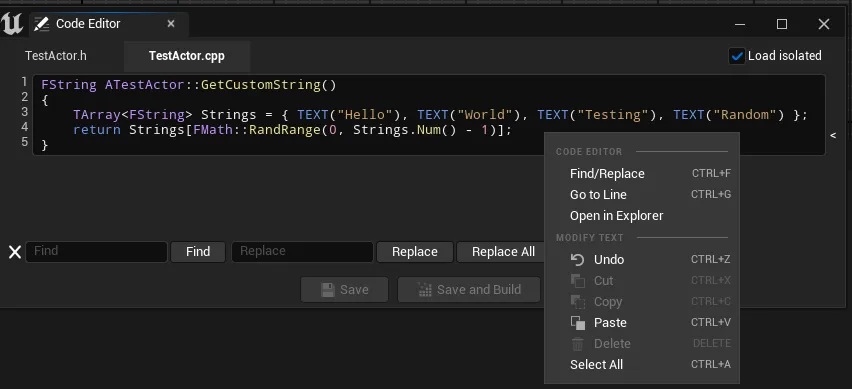
Two things worth copying from this. First, PushCommandList is mandatory: without it the
entries you add by command have no bindings and do nothing. Second, context-sensitive
entries: “Generate Definition” only appears when the cursor is actually on a function
declaration, which is just an if around the AddMenuEntry. That conditional is what
keeps a context menu feeling smart instead of cluttered.
What to take away
- An editor extension is an editor-only module loaded
PostEngineInit; everything is registered inStartupModuleand unwound inShutdownModule. - Commands are a
TCommandssubclass withUI_COMMAND; bind them through anFUICommandList. For shortcuts users can rebind, storeFInputChordin settings and match them inOnKeyDowninstead. - A panel that belongs to a host editor is a
FWorkflowTabFactory, registered via the host module’s delegates and placed withFLayoutExtender, not a global nomad tab. - Toolbar buttons and context menus come from
FExtender+FToolBarBuilderandFMenuBuilder; this classic path needs noUToolMenusdependency.
To see these pieces assembled into a working tool (the panel they summon, the AI assistant inside it, the C++ it reads and writes), the rest of Building an AI Code Editor Inside Unreal Engine walks through each one. The finished plugin is AI Node Code Editor on FAB, with full documentation.
Frequently asked questions
- What module type and loading phase does an editor extension plugin need?
- An editor-only module: Type Editor and LoadingPhase PostEngineInit in the .uplugin. PostEngineInit guarantees the Blueprint editor module (Kismet) and the Settings module are loadable when StartupModule runs, so you can register tabs and project settings safely.
- How do you dock a panel inside the Blueprint editor instead of as a floating window?
- Register a FWorkflowTabFactory through FBlueprintEditorModule::OnRegisterTabsForEditor, then place it with an FLayoutExtender via OnRegisterLayoutExtensions, docking relative to an existing built-in tab. That makes the panel a real per-editor tab, not a global nomad window.
- TCommands or UToolMenus for editor UI?
- Both work. TCommands plus FExtender and FMenuBuilder is the long-standing API and is still fully supported; UToolMenus is the newer data-driven system. A plugin can ship with only the classic extenders and no ToolMenus dependency at all.
- How do you make keyboard shortcuts that users can rebind at runtime?
- A UI_COMMAND chord is fixed at registration. For rebindable shortcuts, store an FInputChord on a config UObject (your settings) and compare it by hand in the widget's OnKeyDown, so the binding survives editor restarts and updates live when changed.